Branching scenarios
Every decision leads somewhere else. Choices change variables, branches follow them, and at the end the student gets written feedback with a recommendation – not just a number.
Immersive educational scenarios
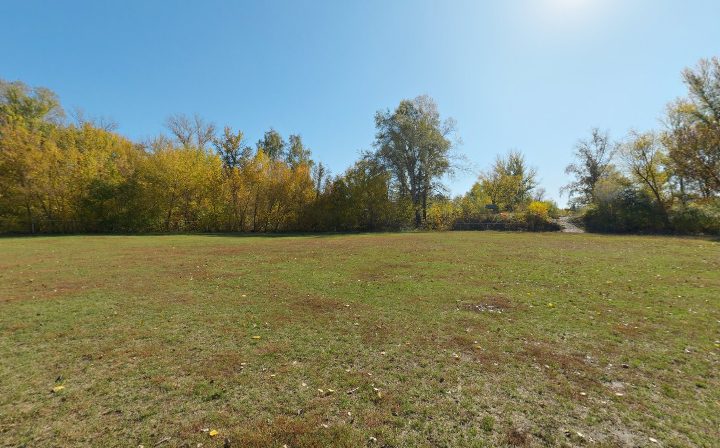
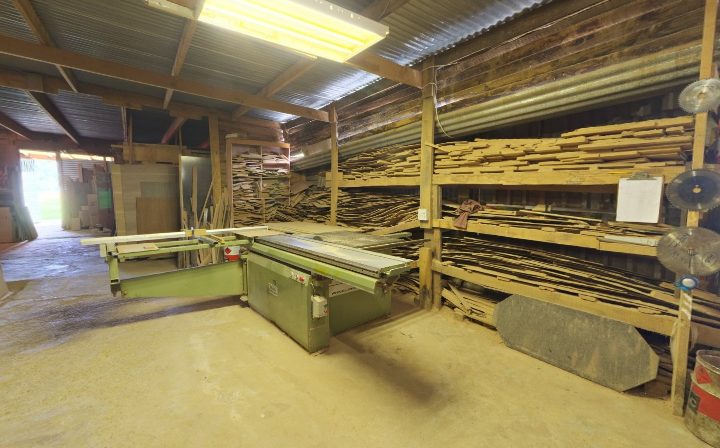
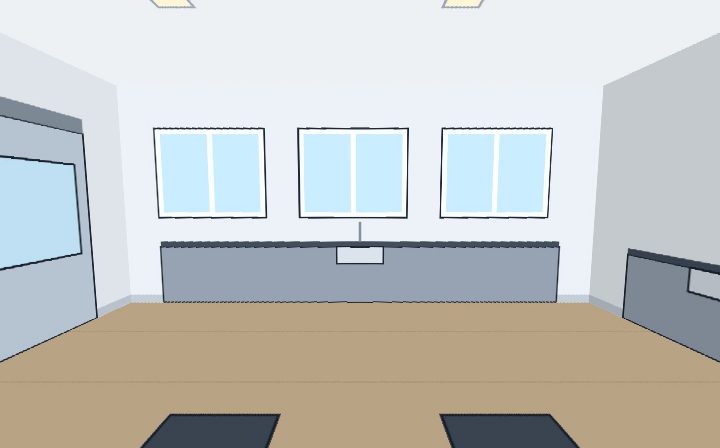
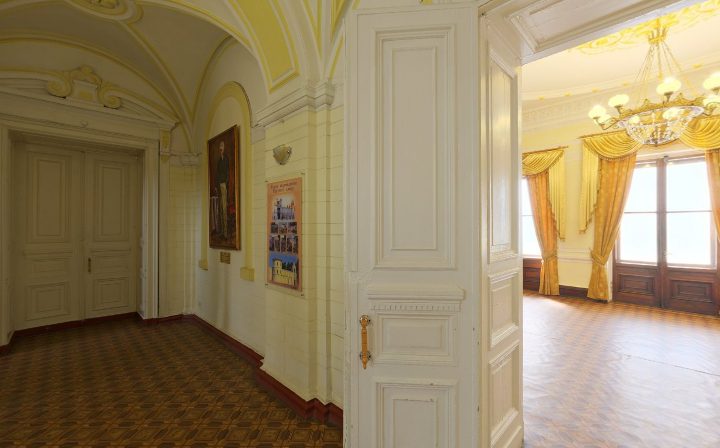
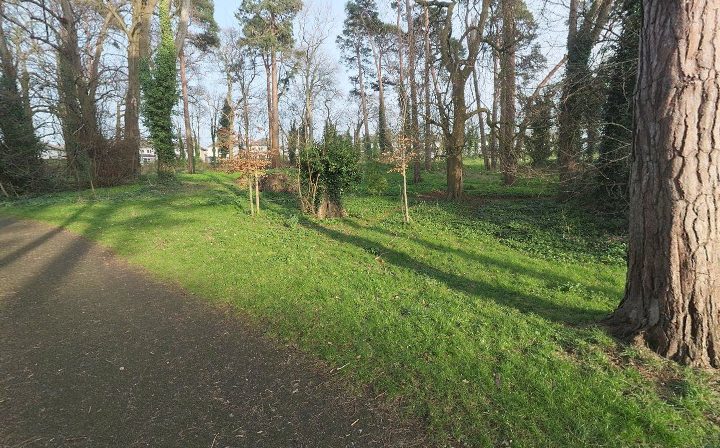
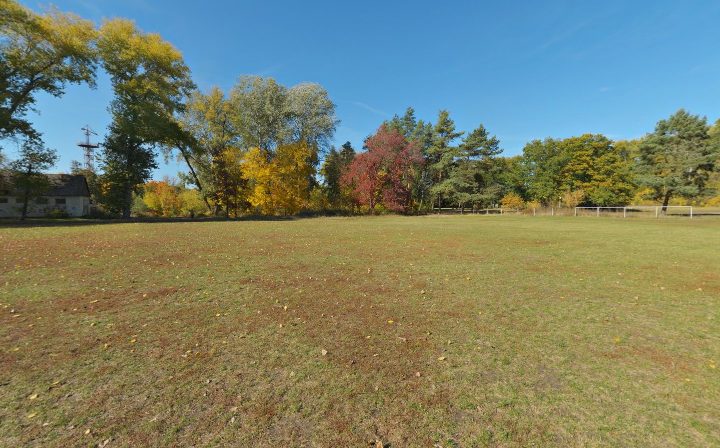
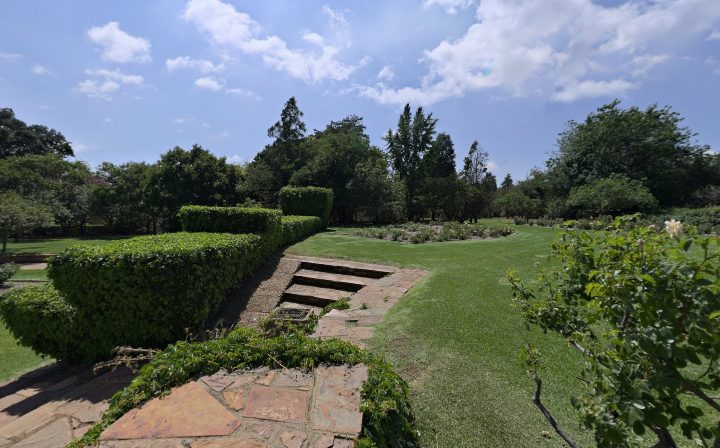
The student steps into a 360° environment – a clinic, a workshop, a laboratory or a park – makes decisions, and every decision takes them somewhere else. At the end they see how it went and why. The teacher builds the scenario in an editor, without programming.

It is neither a test nor a video. What gets assessed is how the decisions unfolded – and the student takes away why it turned out the way it did.
Every decision leads somewhere else. Choices change variables, branches follow them, and at the end the student gets written feedback with a recommendation – not just a number.
Scenes are dragged with the mouse, choices are typed into fields. With every change the editor checks that no branch leads to a dead end.
Your own footage or freely licensed libraries right in the editor – 360° photos, 360° videos and hundreds of 3D models. Author and licence are credited automatically.
The teacher writes a brief, attaches a guideline or procedure, and the AI drafts scenes, choices, assessment and the setting. The result is fine-tuned in the editor.
Dragging objects into zones, a drawing board, switches, sliders, displays, hotspots with materials and 3D models placed in the scene.
The course of every run, a map of where the student looked, a class summary, reflection and discussion questions after the scenario.
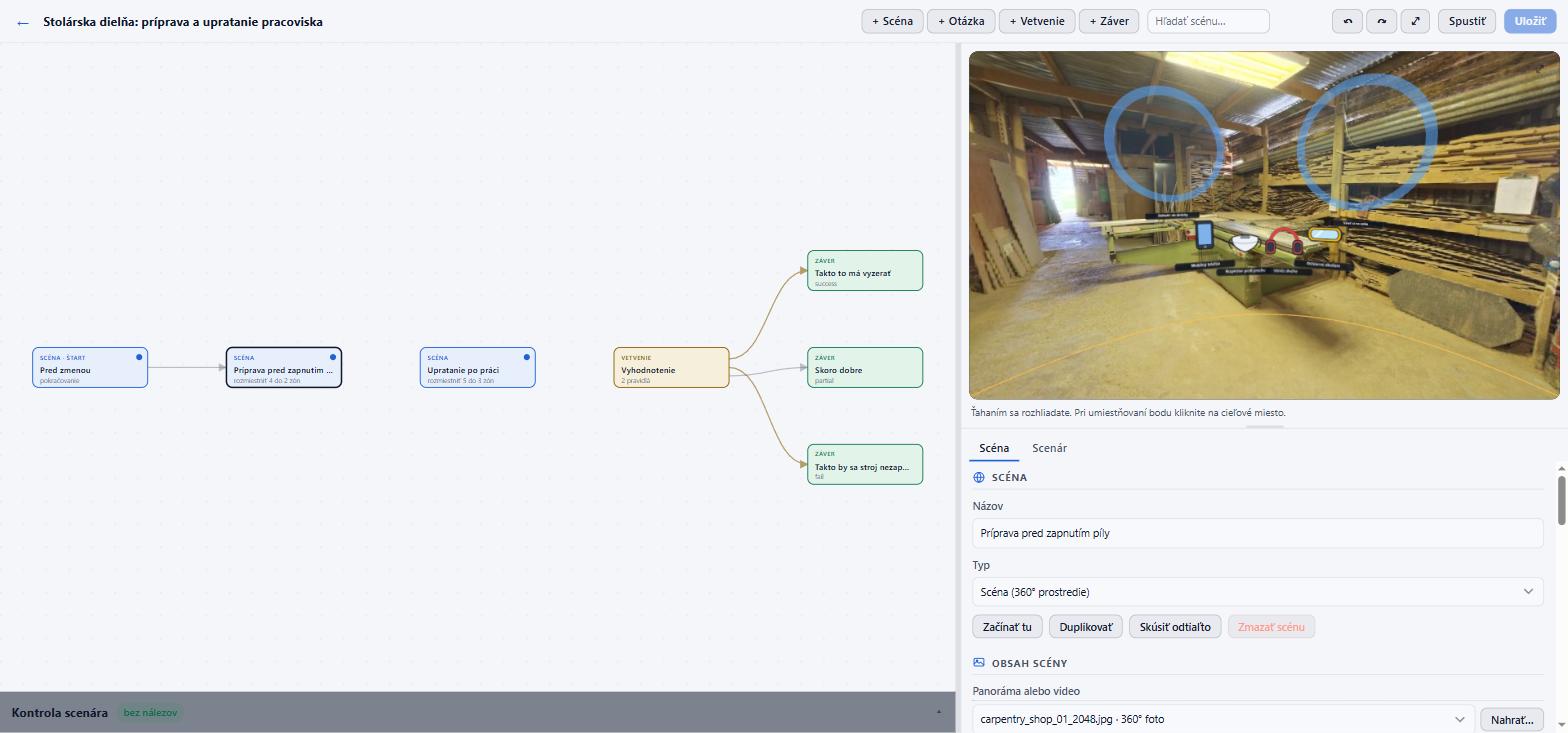
The scenario map is on the left, the 360° preview on the right. Hotspots and objects are placed by clicking directly in the scene. Ready-made element blocks can be shared with colleagues and every save can be undone.
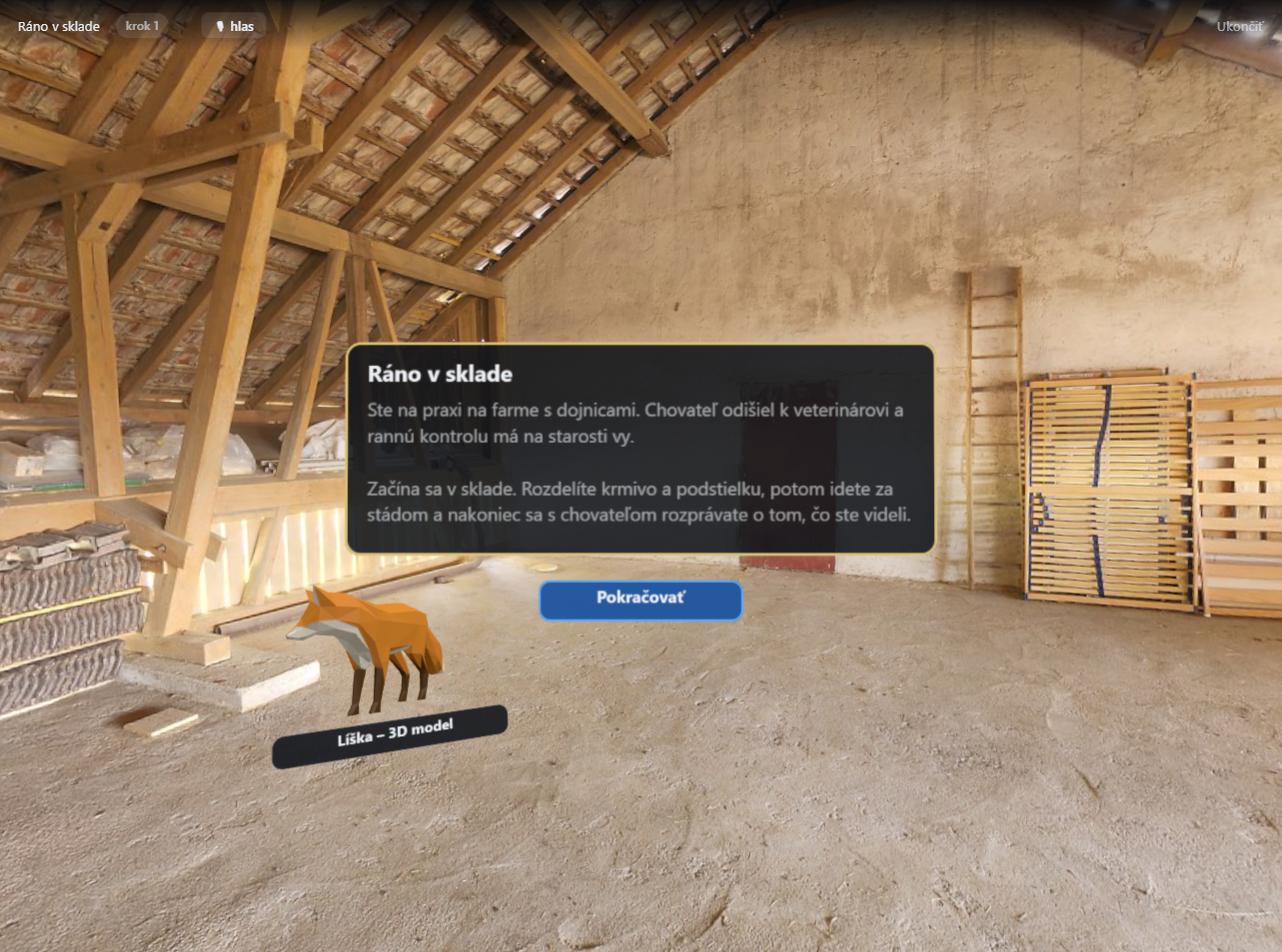
360° photos, 360° videos and 3D models are picked right in the editor from freely licensed libraries. The AI can suggest a suitable setting or object from the scene text. Source and author are shown to the student at the end.
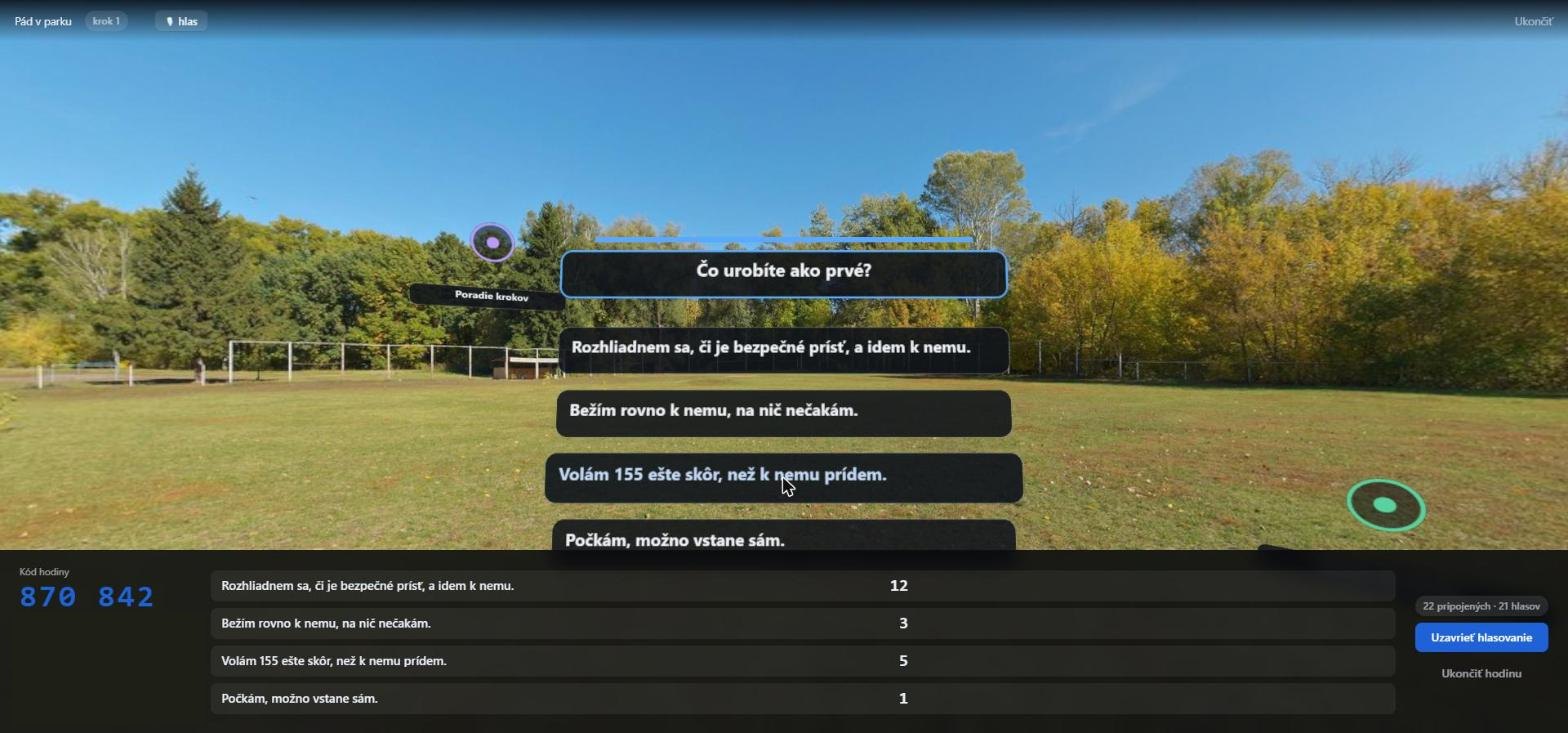
The teacher projects the scenario, students vote from their phones with a lesson code and the majority decides. Differences in the vote make for the best discussions.
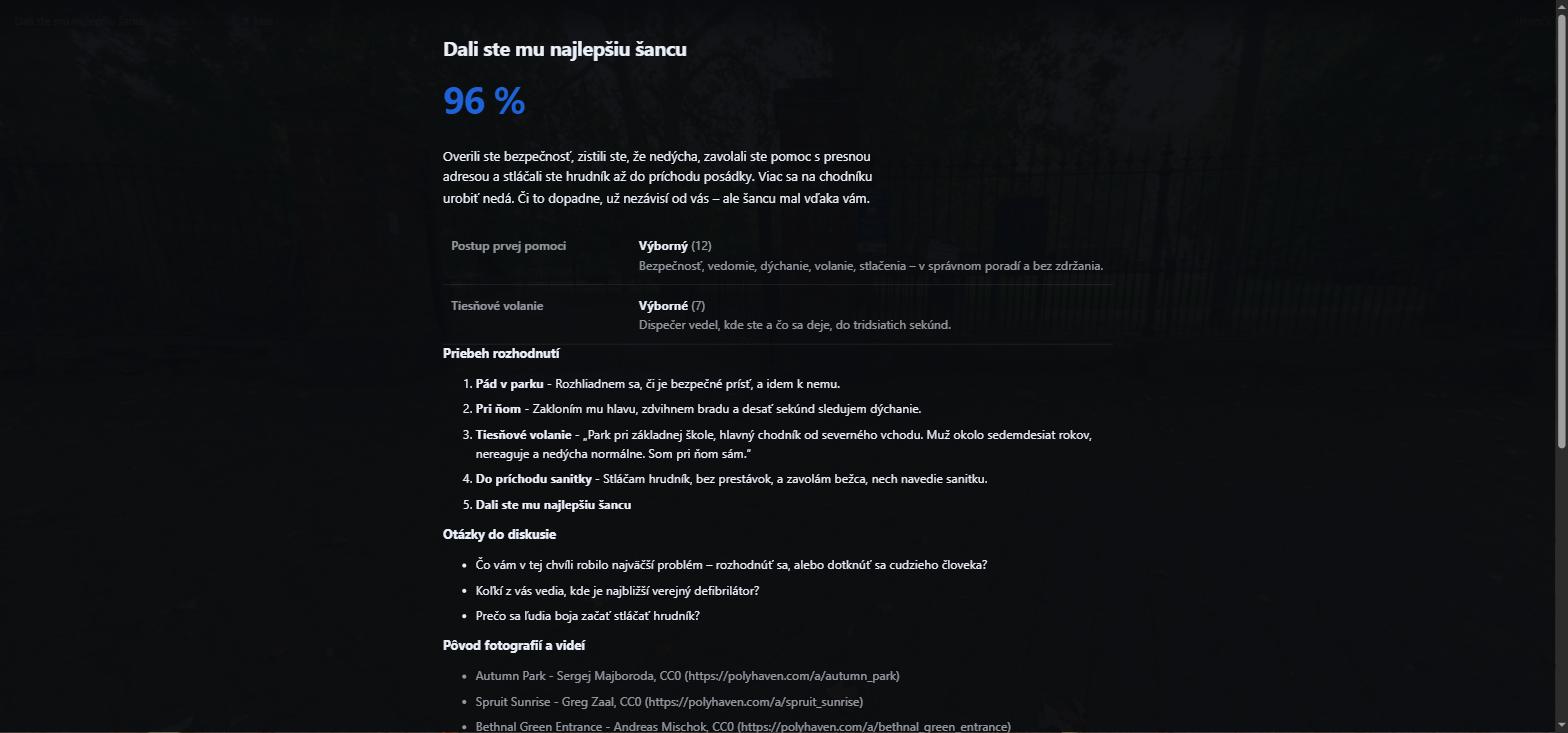
At the end the student sees an assessment by criteria, the full course of their decisions and discussion questions. The teacher gets individual results and a class summary.
From a template, from the catalogue, with AI or from scratch in the editor.
Upload your own 360° photo or video, or pick one from a freely licensed library.
A class assignment, a public link, a QR code or an icon right on the headset.
Individual and class results, export to CSV, SCORM for your LMS and xAPI.
The same scenario runs on anything with a browser. The player handles the difference between a headset, a tablet and a projection wall – not the author.
Meta Quest, Pico and others with WebXR – controllers, hands, gaze or voice. Nothing to install.
Mouse, touch, or projection for the whole class with group voting from phones.
Look around by tilting or swiping. A scenario can be downloaded and played without internet.
One computer projects onto 1 to 4 walls, the floor and the ceiling. Wall angles are calculated from the room dimensions.


Projection room: the same scene split across the left, front and right walls.
The catalogue of ready-made scenarios can be played right away or copied and adapted to your school.

Results, accounts and scenarios are stored on the operator’s server, not with third parties. Each school’s data is kept separate, sign-in can be protected with two-factor authentication and every change is written to an audit log.
Teachers and students sign in with e-mail, headsets with a device code.